

Checking your devices for cybersecurity vulnerabilities means scanning them for outdated software, weak settings, or hidden malware that attackers could exploit. You can do this yourself in under 30 minutes using built-in tools on your phone or computer, plus a few free scanners. This guide walks you through the exact steps for phones, computers, and the smart devices most people forget about.
Cyberattacks rarely start with a dramatic hack. They start with a small, unpatched weakness that sits unnoticed for months. Regular vulnerability checks close that gap before someone else finds it.
Below, you’ll find a practical, non-technical walkthrough you can follow today, no IT background required.
What “Checking for Vulnerabilities” Actually Means
A vulnerability is any weakness in your device that a hacker could use to gain access, steal data, or install malware. This could be an outdated app, a weak password, or an open network port you never knew existed.
Checking for vulnerabilities simply means looking for these weak points before someone else does. Security researchers describe this process as “attack surface reduction.” In plain terms, you’re shrinking the number of ways a criminal could break in.
This differs from antivirus scanning. Antivirus software looks for malware that’s already on your device. Vulnerability checking looks for the doors and windows that malware could use to get in, even if nothing bad has happened yet.
Warning Signs Your Device May Already Be Compromised
Some vulnerabilities show physical symptoms before you even run a scan. Watch for these signs first.
Unexplained battery drain or overheating. Malware often runs background processes that quietly drain power, even when you’re not using the device.
Apps you don’t remember installing. This is one of the clearest signs of a compromised phone or computer. Check your app list monthly and remove anything unfamiliar.
Frequent pop-ups or browser redirects. Legitimate websites rarely bombard you with ads. Constant pop-ups usually point to adware or a browser hijack.
Sluggish performance with no clear cause. If your device slows down dramatically after months of normal speed, a background process worth investigating may be the reason.
None of these signs confirms an attack on their own. But two or more together are worth a full check using the steps below.
How to Check Your Smartphone for Vulnerabilities
Your phone holds more personal data than almost any other device you own, so it deserves the first check.
Checking an iPhone
Open Settings and tap General, then Software Update. If your iOS version isn’t current, update it immediately, since Apple regularly patches security flaws. Next, go to Settings, then Privacy & Security, and review App Privacy Report to see which apps access your camera, microphone, or location more than expected.
Apple also offers Lockdown Mode for anyone at higher risk of targeted attacks, such as journalists or activists. It restricts certain features that attackers commonly exploit.
Checking an Android Device
Open Settings, then Security (the exact label varies by manufacturer), and check Google Play Protect status. This built-in scanner checks installed apps for known malware. Also confirm your Android version is current under Settings, then About Phone, then Software Update.
Android users should pay close attention to app permissions. Go to Settings, then Apps, then Permission Manager, and revoke access for apps that request more than they need, like a flashlight app asking for contacts.
Safeguarding Desktop Systems and Connected Hardware
Computers face a wider array of entry points than mobile devices due to their complex software ecosystems, active background services, and constant multi-network connectivity. Identifying system vulnerabilities requires regularly auditing installed applications, managing port configurations, and monitoring network traffic to block unauthorized access. As you strengthen your system defenses, remember that your broader digital footprint extends to every IoT device linked to your network; evaluating these peripheral risks early is essential, starting with our guide on choose the right smart speaker for your smart home.
Checking Windows
Open Windows Security (search for it in the Start menu) and click Virus & Threat Protection to run a quick scan. Then check Windows Update under Settings to confirm you’re not behind on patches. Microsoft ties many of its security fixes directly to these updates, so delaying them leaves known gaps open.
For a deeper check, Windows Security also includes a Device Performance & Health section that flags storage, battery, and driver issues that could signal deeper problems.
Checking a Mac
Go to System Settings, then General, then Software Update, to confirm macOS is current. Apple bundles many security patches into these updates rather than releasing them separately. Then open System Settings, then Privacy & Security, and review which apps have access to your camera, microphone, and files.
Mac users sometimes assume they’re immune to threats. That’s a myth; Macs face fewer attacks than Windows PCs mainly because of smaller market share, not stronger built-in defenses.
The Overlooked Devices Most People Forget to Check
Most cybersecurity advice stops at phones and laptops. But your home network likely includes several devices that rarely get checked, and they’re often the weakest link.
Your router is the gateway to every device in your home, yet most people never update its firmware after setup. Log into your router’s admin panel (usually by typing its IP address into a browser) and look for a firmware update option. While there, confirm you’re using WPA3 encryption if your router supports it, and change the default admin password if you haven’t already.
Smart home devices, like cameras, doorbells, and voice assistants, often ship with weak default security. Check each device’s companion app for a firmware update option, and disable any remote-access features you don’t actually use.
Old devices sitting in a drawer, like a retired tablet or a spare laptop still connected to your Wi-Fi, can quietly stay online without updates for years. If you’re not actively using a device, disconnect it from your network entirely.
This is the step most guides skip, and it’s often where real vulnerabilities hide the longest.
Free vs Paid Vulnerability Scanning Tools
Free tools cover most home users’ needs, while paid tools add automation and deeper reporting for people managing multiple devices or a small business.
Free options include your device’s built-in security tools (Windows Security, Google Play Protect, Apple’s App Privacy Report) plus standalone scanners like Malwarebytes’ free version, which checks for malware and some known vulnerabilities. Router manufacturers also often provide free firmware-check tools through their apps.
Paid options, such as Bitdefender, Norton 360, or business-grade vulnerability scanners, add continuous monitoring, automatic patching alerts, and protection across every device on one plan. According to industry experts, paid suites make the most sense for households with five or more connected devices, or anyone running a home-based business.
For a single phone and laptop, free tools checked monthly are usually enough. Add a paid suite once your device count grows or you start storing sensitive work data at home.
How Often You Should Run These Checks
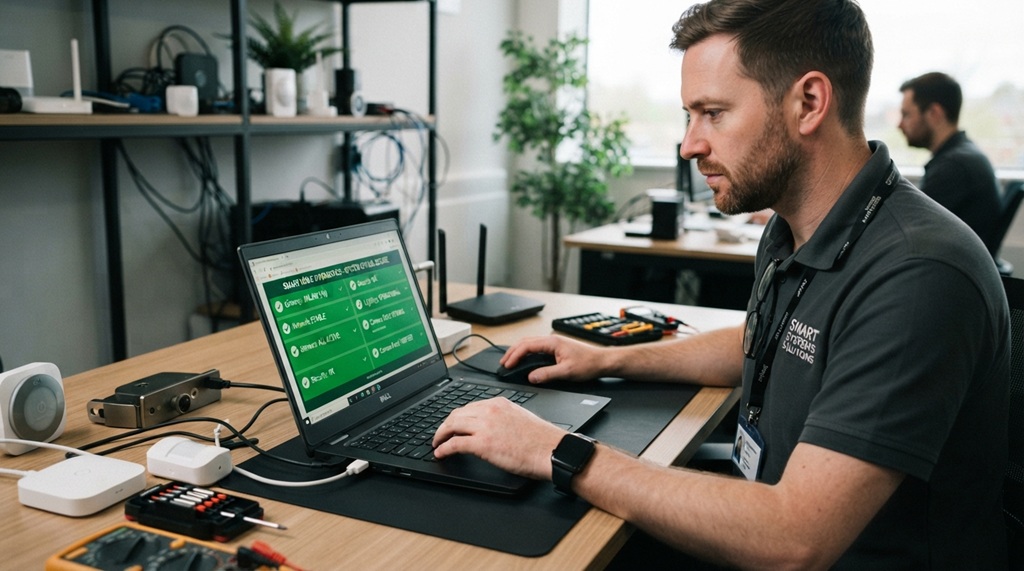
Run a basic check monthly, and a full check (including router and smart home devices) every three months. Set a recurring phone reminder, since this is the step most people forget once the initial scan feels done.
Update your check frequency after specific events too. Run an extra check immediately after connecting to public Wi-Fi, after a major software update, or after clicking a link you’re unsure about. These moments carry higher risk than routine daily use.
What to Do After You Find a Vulnerability
If a scan flags a problem, address it in this order: update the affected software first, then change any related passwords, then remove apps or devices you no longer trust. Most vulnerabilities disappear once you install the latest update, since manufacturers typically patch the exact flaw the scan detected.
If you find signs of active compromise, like unfamiliar login locations or files you didn’t create, disconnect the device from Wi-Fi before doing anything else. This stops an attacker from accessing it further while you investigate or seek help.
Frequently Asked Questions
How long does a full device vulnerability check take?
A basic phone or computer check takes about 10-15 minutes using built-in tools. A full check that includes your router and smart home devices usually takes 30-45 minutes the first time, and less on repeat checks.
Can I check my device for vulnerabilities without installing new software?
Yes. Every major operating system includes built-in security tools, like Windows Security, Google Play Protect, and Apple’s Privacy Report. These cover most common vulnerabilities without any extra downloads.
Is a vulnerability scan the same as an antivirus scan?
No. Antivirus software looks for malware already on your device, while a vulnerability check looks for weaknesses, like outdated software, that could let malware in later. Both matter, and they work best together.
Do I need to check vulnerabilities on devices I rarely use?
Yes, especially if they’re still connected to your Wi-Fi. Idle devices often miss updates for months, making them an easy target even though you’re not actively using them.
What’s the single most important vulnerability to fix first?
Outdated software is the most common entry point attackers use, according to industry experts. Updating your operating system and apps closes more security gaps than any other single action.
Conclusion
Checking your devices for cybersecurity vulnerabilities doesn’t require technical expertise, just a consistent routine. Start with your phone and computer using the built-in tools covered above, then extend the habit to your router and smart home devices, since these are the ones most people forget. Run a basic check monthly and a full check quarterly, and you’ll close most of the gaps attackers rely on before they ever get the chance to use them.

Leave a Reply