
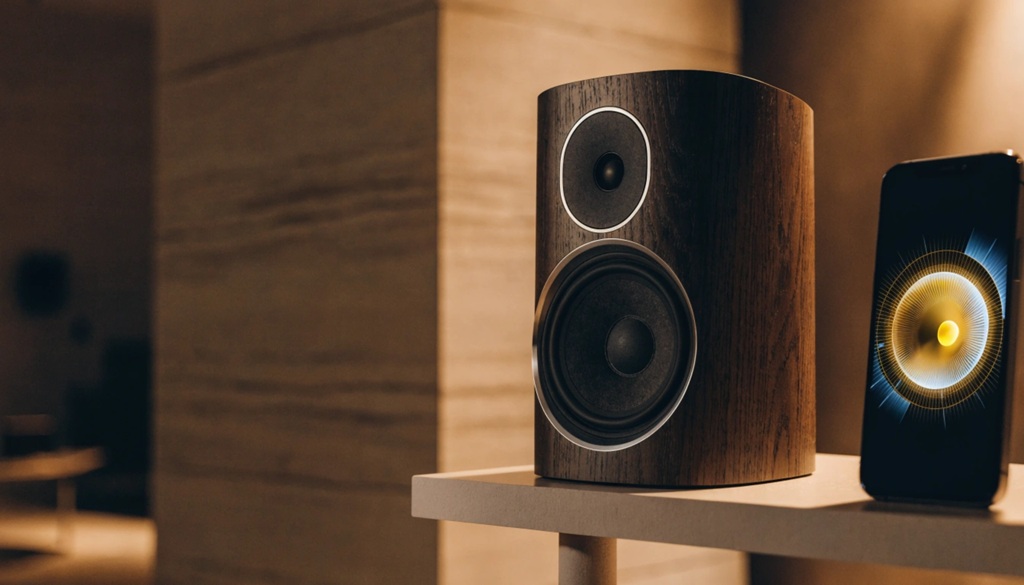
You can stream hi-res audio on almost any modern home speaker. You just need three things: a hi-res source, a compatible app, and a speaker that supports high-bitrate playback. Most people already own two of the three and don’t know it.
This guide skips the jargon. It shows you exactly what hi-res audio means, which speakers already support it, and how to set everything up in under ten minutes. By the end, you’ll know whether your current speaker qualifies, and what to buy if it doesn’t.
Let’s break down what “hi-res” actually means, then get you listening.
What Hi-Res Audio Actually Means (And Why It Matters)
Hi-res audio refers to sound files with a higher sample rate and bit depth than a standard CD. A CD plays at 16-bit/44.1kHz. Hi-res files usually start at 24-bit/48kHz and go up from there.
Higher numbers mean more information gets captured in the original recording. This translates to more detail, especially in quiet passages and complex instrumentals. You’ll notice it most on well-mixed tracks played through decent hardware.
Why It Matters for Everyday Listening
Hi-res audio isn’t just for audiophiles anymore. Streaming services now offer it as a standard tier, not a premium add-on. Your phone, your speaker, and your Wi-Fi connection can likely already handle it.
The catch is compatibility. Every link in the chain the app, the connection, and the speaker needs to support hi-res formats. If one link fails, you get compressed audio instead, even if you paid for the hi-res tier.
Which Streaming Services Offer Hi-Res Audio
Most major platforms now support hi-res streaming, but the details vary by service. Here’s a quick breakdown of what to expect.
Services With Hi-Res as Standard
Apple Music includes lossless and hi-res lossless audio at no extra cost for all subscribers. Amazon Music Unlimited also bundles hi-res into its regular subscription. Tidal offers hi-res through its HiFi Plus tier.
Services Still Catching Up
Spotify has discussed a lossless tier for years but hasn’t rolled it out widely as of this writing. If lossless playback matters to you right now, choose a platform that already delivers it rather than waiting.
What to Check Before You Commit
Look for the terms “Lossless,” “Hi-Res Lossless,” or “Master Quality” in the app’s settings menu. These labels confirm the service actually transmits full-resolution files, not just marketing language.
How to Set Up Your Speaker for Hi-Res Playback
Getting hi-res audio to your speaker requires the right connection method, not just the right app. Bluetooth alone often can’t carry a full hi-res signal without some help.
Step 1: Check Your Speaker’s Codec Support
Look up your speaker’s spec sheet and search for supported audio codecs. LDAC, aptX HD, and aptX Adaptive all support higher bitrates than standard Bluetooth (SBC). If your speaker only lists SBC, it can’t handle true hi-res over Bluetooth.
Step 2: Choose a Wired or Wi-Fi Connection When Possible
Wi-Fi-based systems typically outperform Bluetooth for hi-res streaming. Platforms like Chromecast built-in, AirPlay 2, and proprietary multi-room systems (Sonos, Bluesound, WiiM) transmit larger files without the compression Bluetooth needs.
A wired connection, like USB or optical, guarantees full-quality transfer every time. It’s the most reliable option if your speaker supports it.
Step 3: Match the App Settings to Your Hardware
Open your streaming app’s audio quality settings and select the highest tier your speaker supports. Setting the app to “Hi-Res” won’t help if your connection method can’t carry that much data match the setting to your actual hardware.
Speakers That Already Support Hi-Res Streaming
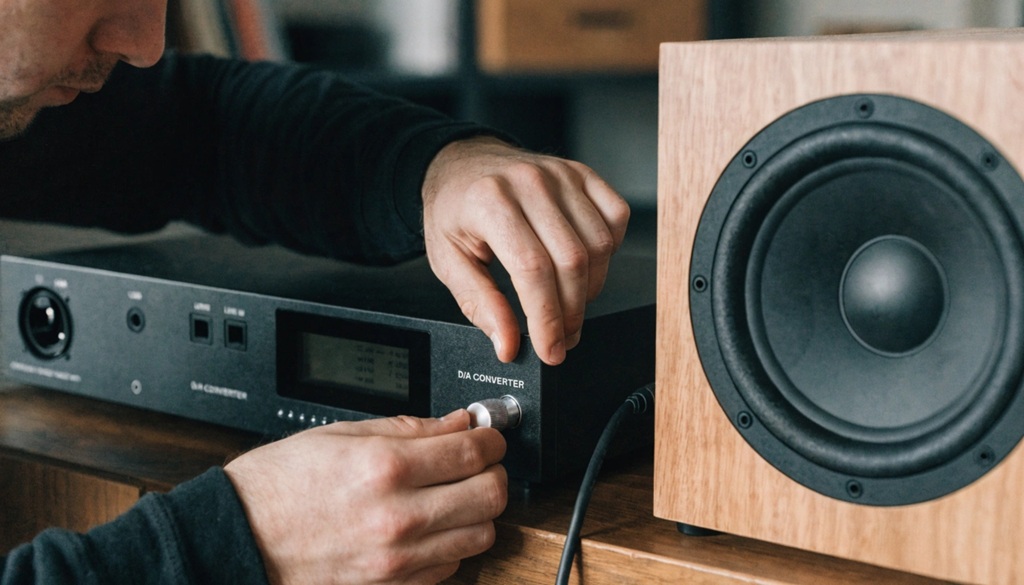
You may already own a speaker capable of hi-res playback. Here’s what to look for across common categories.
Smart Speakers and Wi-Fi Systems
Sonos speakers support lossless streaming through supported apps and their own Sonos app. Amazon Echo Studio and newer Echo models handle Ultra HD audio from Amazon Music. Apple HomePod and HomePod mini support lossless streaming via AirPlay from Apple Music.
Bluetooth Speakers
Look for speakers with LDAC or aptX HD support, common in models from Sony, Bose, and JBL’s higher-end lineup. These codecs push far more data than standard Bluetooth, closing most of the gap with wired listening.
Budget and Older Speakers
Older or budget speakers often max out at standard Bluetooth (SBC) or basic Wi-Fi streaming. They’ll still play hi-res files, but the file gets compressed down before playback. You’ll hear an improvement over MP3, just not the full hi-res experience.
Common Mistakes That Ruin Hi-Res Audio Quality
Even with top-tier equipment, minor configuration oversights can quietly degrade your sound quality without triggering any obvious warning. To ensure an uncompromised listening experience, it is essential to eliminate common playback bottlenecks ranging from incorrect DAC settings to lossy wireless transmission protocols. Furthermore, as your audio setup relies on connected network devices, ensuring a secure environment is just as critical; protect your audio gear and personal network by learning protect digital privacy from hidden smart trackers.
Using the Wrong Bluetooth Codec
Your phone and speaker negotiate a codec automatically, and it’s not always the best one available. Check your phone’s Bluetooth settings menu to confirm which codec is actually active during playback.
Streaming Over a Weak Wi-Fi Connection
Hi-res files are larger and need stable bandwidth. A weak or congested Wi-Fi signal can cause your app to quietly drop down to a lower-quality stream, even if you selected the highest setting.
Ignoring Volume-Limiting Software
Some phones and operating systems cap volume or apply compression by default, especially with certain accessibility settings enabled. This can flatten dynamic range even when the source file is technically hi-res.
A Setup Tip Most Guides Skip: Test Your Actual Chain
Most articles tell you to buy hi-res gear and trust that it works. A better approach: test the full signal chain yourself before assuming anything.
Play a well-known hi-res track (Apple Music and Tidal both offer curated hi-res playlists) through your speaker at a moderate volume. Then play the same track compressed, like through a YouTube video or a low-bitrate MP3. Compare the two back to back.
If you can’t hear a real difference, one of three things is happening: your speaker doesn’t support hi-res, your connection method is bottlenecking the signal, or the room itself has too much background noise to notice subtle detail. This test takes two minutes and tells you more than any spec sheet.
FAQ
Do I need special headphones or a speaker to hear hi-res audio?
You need a speaker or headphones with hi-res-capable hardware and codec support, like LDAC or aptX HD for wireless devices. Wired speakers with proper DACs can handle hi-res without any special codec at all. Check your device’s spec sheet for confirmation before assuming it works.
Does hi-res audio use more mobile data?
Yes, hi-res files are noticeably larger than standard or compressed audio files. Streaming hi-res over cellular data can use two to five times more data per song, depending on the format. Consider downloading hi-res tracks over Wi-Fi if you have a limited data plan.
Can Bluetooth actually handle true hi-res audio?
Standard Bluetooth (SBC) cannot handle full hi-res bitrates, so it compresses the file during transmission. Codecs like LDAC and aptX Adaptive get much closer to hi-res quality over Bluetooth, though not always identical to wired playback. For guaranteed full quality, use Wi-Fi or a wired connection instead.
Is hi-res audio worth it on a budget speaker?
You’ll likely hear some improvement over standard streaming, even on a budget speaker. However, the speaker’s drivers and internal components limit how much extra detail you’ll actually perceive. The upgrade tends to matter more on mid-range and higher-end speakers built to reveal that detail.
How do I know if I’m actually listening to hi-res audio right now?
Most apps display a small icon or label, like “Hi-Res Lossless,” in the now-playing screen. Tap or click on it in apps like Apple Music or Tidal to see the exact bitrate and format streaming. If no indicator appears, check your app’s audio quality settings to confirm hi-res is enabled.
Conclusion
Streaming hi-res audio on a modern home speaker isn’t complicated once you understand the three moving parts: your streaming service, your connection method, and your speaker’s hardware. Most listeners already have at least two of these in place.
Check your speaker’s codec support, pick a service that includes hi-res as standard, and match your app’s settings to your actual hardware. Run the quick A/B test from this guide to confirm it’s really working. Once it clicks, you likely won’t want to go back to standard streaming again.

Leave a Reply