

A slow smartphone usually comes from a handful of common causes: too many background apps, a full storage drive, outdated software, malware, overheating, or an aging battery. Most of these issues are fixable in minutes, without spending a dime on a new device.
This guide covers every major cause of smartphone lag and gives you clear, practical fixes for each one. It works whether you use an iPhone or an Android phone, since the underlying problems are nearly identical across both platforms.
You don’t need technical skills to follow along. Grab your phone, set aside twenty minutes, and work through the sections below in order for the best results.
Restart Your Phone First
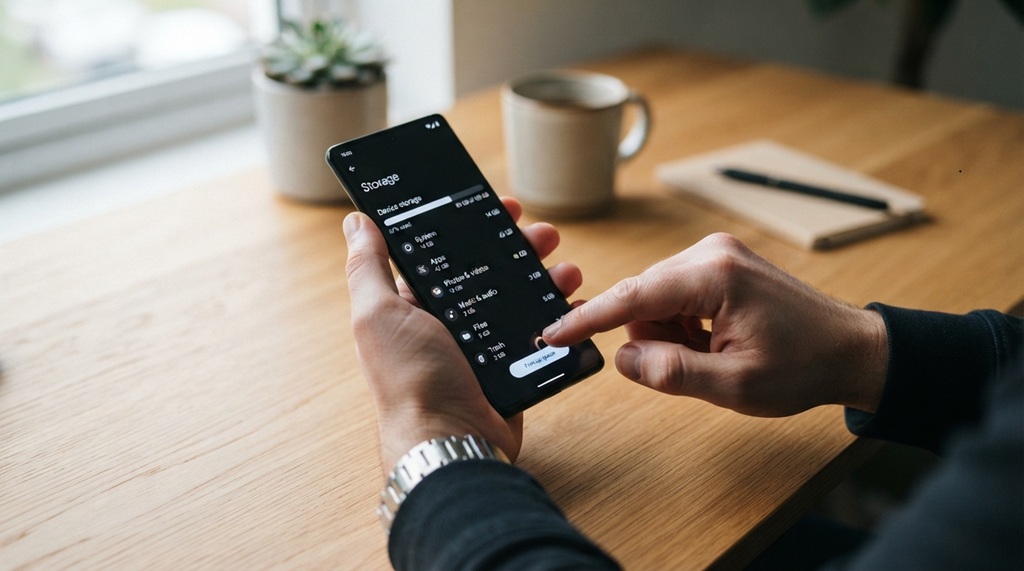
A simple restart clears your phone’s temporary memory (RAM) and stops background processes that pile up over time. Many people skip this step, but it solves a surprising number of slowdowns on its own.
Your phone’s memory fills up as you open apps, browse the web, and switch between tasks throughout the day. This buildup slows everything down gradually, so you might not even notice it happening. A restart wipes the slate clean and gives your system a fresh start.
Turn your phone off completely, wait ten seconds, then turn it back on. Set a weekly reminder to do this, since consistency matters more than any single restart. It costs nothing and takes less than a minute.
Free Up Storage Space
Low storage space is one of the biggest reasons phones slow down, because your operating system needs free space to manage files and run apps smoothly. When storage gets too full, apps struggle to save data, and the whole system starts to lag.
Delete Unused Apps
Go through your app list and remove anything you haven’t opened in the last two months. Old apps still run background tasks and store data even when you never use them.
Clear Cached Data
Apps store temporary files called “cache” to load content faster. Over time, this cache grows huge and starts working against you instead of helping. Open your phone’s settings, find the storage menu, and clear the cache for your most-used apps.
Move Photos and Videos to the Cloud
Photos and videos eat up storage faster than almost anything else on your phone. Move them to a cloud service like Google Photos or iCloud, then delete the local copies once the upload finishes. This single step can free up several gigabytes of space.
Remove Duplicate and Large Files
Screenshots, downloaded PDFs, and duplicate photos pile up quietly in the background. Check your downloads folder and screenshot album every few weeks, and delete anything you no longer need.
Updating Software and Apps for Optimal Speed
Keeping your operating system and applications updated is essential for maintaining high-speed performance and peak system stability. Manufacturers and developers frequently release software patches designed to resolve background glitches, refine execution code, and reduce processor strain issues that subtly degrade your device’s speed over time. By delaying system updates, you run the risk of letting inefficient software drain your battery and slow down daily task processing. Ensure your settings menu is configured for automatic updates across both the core operating system and individual applications from your primary app store; this proactive habit optimizes device responsiveness while securing your hardware against malicious exploits. For further performance optimization, discover how to find hidden tech features on your new gadgets to unlock advanced native settings that maximize processing efficiency.
Manage Background Apps, Widgets, and Notifications
Apps running in the background use memory and processing power even when you’re not actively using them. This constant activity drains your phone’s resources and slows down everything else you’re trying to do.
Limit Background App Activity
Most phones let you restrict which apps run in the background. Open your settings, find battery or app management, and turn this off for apps you rarely use, like games or shopping apps you opened once and forgot about.
Turn Off Unnecessary Notifications
Every notification triggers a small background process to check for updates. Turn off notifications for apps that don’t need to alert you instantly, such as social media, news, or promotional apps.
Remove Excess Home Screen Widgets
Widgets look convenient, but many of them refresh data constantly in the background. Weather widgets, news feeds, and social media widgets are common offenders. Keep only the two or three you actually check daily, and remove the rest.
Reduce Visual Effects and Live Wallpapers
Animations, transitions, and live wallpapers look nice, but they use processing power your phone could spend elsewhere. On older or budget phones, this difference becomes very noticeable over time.
Open your display or accessibility settings and turn off animations or reduce motion effects. Choose a static wallpaper instead of a live or animated one. This small change can make your phone feel noticeably snappier, especially when switching between apps quickly.
Check for Malware and Suspicious Apps
Malware can silently run in the background, using up processing power, draining your battery, and sending your data over the internet without permission. This is a less obvious cause of slowdown, but it’s more common than most people realize.
Watch for warning signs like unexpected pop-up ads, apps you don’t remember installing, or your battery draining far faster than usual. If you notice these signs, run a scan using your phone’s built-in security tool or a reputable antivirus app.
Only download apps from official app stores, and avoid clicking links in unexpected texts or emails. This one habit prevents the vast majority of malware infections before they ever start.
Check Your Battery Health and Watch for Overheating
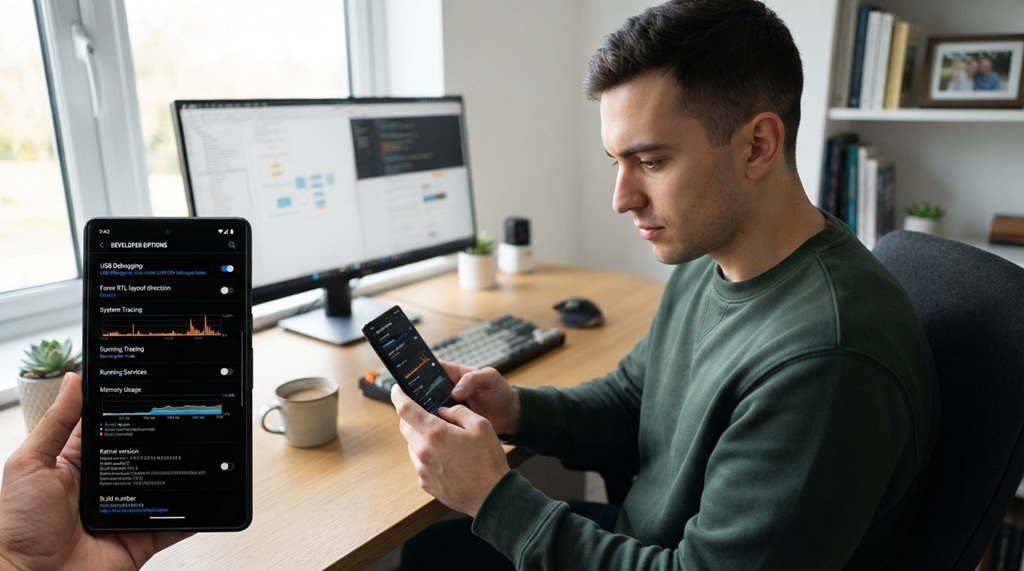
A degraded battery can throttle your phone’s performance, meaning your phone intentionally slows itself down to protect an aging battery from sudden power demands. This is common in phones older than two years.
Most phones include a battery health check in settings. If your battery health drops below 80%, consider replacing it through an authorized repair service. A new battery often restores speed that you assumed was lost for good, which surprises a lot of people who were ready to buy an entirely new phone.
Overheating causes a similar slowdown, since your processor automatically reduces speed to cool itself down. Avoid using your phone while it charges, take off thick cases during heavy use like gaming, and keep it out of direct sunlight on hot days.
Reset Your Phone as a Last Resort
If none of the steps above solve the problem, a factory reset can fix deep performance issues that build up over years of use. This wipes your phone and reinstalls the operating system fresh, removing anything that might be causing hidden conflicts.
Back up your photos, contacts, and files first, since a reset erases everything on the device. Open your settings, find the reset option, and follow the on-screen prompts carefully.
Set up your phone as new instead of restoring from an old backup. Restoring an old backup often brings the same clutter and problems right back with it, which defeats the purpose of resetting in the first place.
Frequently Asked Questions
Why does my phone get slow after a few months of normal use?
Your phone slows down because apps accumulate cached data, storage fills up, and background processes multiply over time without you noticing. Regular maintenance, like clearing cache and deleting unused apps, prevents most of this buildup from ever becoming a problem.
Does closing apps actually make my phone faster?
Closing apps you’re not using can help a little, but modern phones manage memory well on their own most of the time. The bigger performance wins come from freeing up storage and limiting background activity, not from obsessively closing every open app.
How often should I restart my smartphone?
Restart your phone once a week to clear temporary memory and stop background processes from piling up over time. This one simple habit alone prevents a large number of common slowdowns.
Will a factory reset fix a slow phone for good?
A factory reset often fixes slowdowns caused by years of accumulated data and settings, since it restores your phone to its original condition. Try the other steps first, though, since a reset erases everything and takes real time to set back up afterward.
Is it worth replacing an old phone’s battery instead of buying a new device?
Yes, if your phone’s battery health has dropped significantly, a replacement often restores speed and battery life for a fraction of the cost of a new phone. This option works especially well when the rest of the phone is still in good working condition.
Can too many photos really slow down my phone?
Yes, thousands of photos and videos can fill your storage and make your phone struggle to manage files efficiently. Moving them to cloud storage and clearing local copies often produces a noticeable speed improvement within minutes.
Final Thoughts
A slow smartphone doesn’t always mean you need to buy a new one. Most performance problems come from full storage, outdated software, background clutter, or a tired battery, and you can fix all of these yourself.
Start with a restart and a storage cleanup, since these two steps solve the majority of slowdowns on their own. Then work through the remaining steps as needed, checking for malware, updating your apps, and testing your battery health along the way.
Your phone will likely run faster than it has in months once you finish. You’ll also save the cost of an upgrade that your current phone probably never needed in the first place.

Leave a Reply