
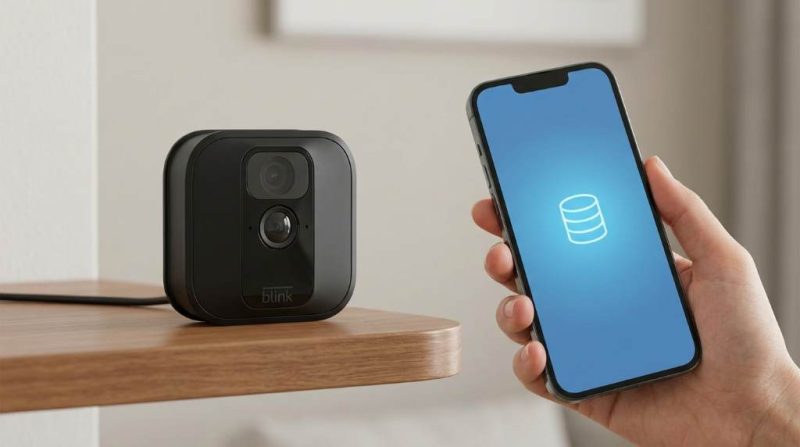
Smart home security is growing fast, and Blink cameras are right at the center of that growth. According to recent data, the global smart home security market is expected to surpass $78 billion by 2025, with cloud-based storage playing a critical role. Millions of homeowners across the USA rely on Blink devices to protect their properties. However, many users still struggle to understand how to access Blink cloud storage and make the most of its features. This guide walks you through every step clearly, so you can view, manage, and download your footage with ease.
What Is Blink Cloud Storage and Why Does It Matter?
Blink cloud storage is a subscription-based service that saves your motion-triggered video clips securely online. Instead of relying solely on a local USB drive, your footage gets backed up automatically to Amazon’s cloud servers. This gives you remote access to recordings from anywhere in the world. For homeowners who travel frequently or manage multiple properties, this feature is incredibly valuable.
Blink launched its subscription plan, called the Blink Subscription Plan, to offer continuous cloud access for recorded clips. Without this plan, your device can still function, but you will lose the ability to save clips to the cloud. The plan is affordable and starts at a few dollars per month per device. Understanding this foundation helps you navigate cloud access more confidently.
How to Access Blink Cloud Storage: Step-by-Step
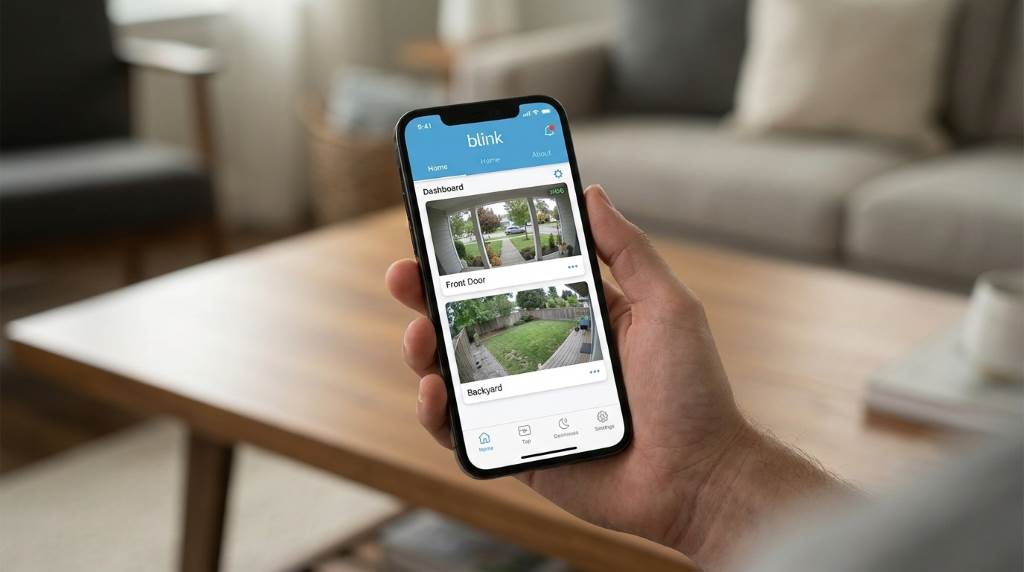
Learning how to access Blink cloud storage starts with the Blink Home Monitor app. This app is available for both iOS and Android devices and serves as your control center. Once installed, it connects directly to your Blink account and syncs all saved clips. Follow these steps carefully to get full access.
Step 1: Download and Set Up the Blink App
First, open the App Store or Google Play Store on your smartphone. Search for “Blink Home Monitor” and install the official app from Amazon. After installation, create a Blink account using your email address and a secure password. If you already have an account, simply log in with your existing credentials.
Step 2: Connect Your Blink Device
Once logged in, tap the plus icon on the home screen to add your Blink camera or doorbell. Follow the on-screen instructions to sync your device with the app via Wi-Fi. Make sure your camera connects to a 2.4 GHz network for stable performance. After syncing, your device will appear on the home dashboard.
Step 3: Subscribe to the Blink Subscription Plan
To unlock full cloud storage, navigate to the Account section within the app. From there, select “Manage Subscription” and choose a plan that suits your needs. The Basic Plan covers one camera, while the Plus Plan covers unlimited cameras at a flat monthly or annual rate. Completing your subscription activates cloud clip saving immediately.
Step 4: Access Your Saved Cloud Clips
After your subscription is active, tap on any camera feed on the home screen. Select the “Clip Roll” option, which displays all recorded motion clips stored in the cloud. You can scroll through clips organized by date and time. Tap any clip to play it directly from the cloud without downloading it first.
Step 5: Filter, Download, or Share Clips
Inside the Clip Roll, use the filter icon to sort clips by camera, date range, or motion type. To save a clip to your phone, tap the download icon below the video player. You can also share clips directly via email or messaging apps using the share button. Deleting unwanted clips is just as simple and helps keep your storage organized.
How to Access Blink Cloud Storage Through a Web Browser
Many users wonder whether they can access Blink cloud storage from a computer. Currently, Blink does not offer a full web portal for viewing clips like some competitors do. However, you can manage your Blink account and subscription settings at account.amazon.com since Blink is an Amazon-owned brand. For direct clip viewing, the Blink mobile app remains the primary and recommended method.
Some users also explore accessing Blink through Amazon Alexa integrations. If you link your Blink account with Alexa, you can view live feeds on Echo Show devices. However, stored cloud clips are still best accessed through the dedicated Blink app. Amazon continues to improve cross-platform support, so browser-based viewing may become available in future updates.
Managing Your Blink Cloud Storage Efficiently
Efficient storage management helps you get the most from your subscription. Blink stores clips for up to 60 days before they are automatically deleted. Reviewing and deleting unnecessary clips regularly prevents your clip roll from becoming overwhelming. Setting motion sensitivity correctly also reduces the number of false-trigger recordings that waste storage.
You can customize which cameras save to the cloud within the app’s settings menu. Turning off cloud saving for low-priority cameras helps you focus storage on the most important areas. Furthermore, you can enable or disable motion detection schedules to limit recordings during certain hours. These settings give you full control over how your cloud storage gets used.
Blink Local Storage vs. Cloud Storage: Key Differences
Blink also supports local storage through a USB drive connected to the Sync Module 2. Local storage saves clips directly to a physical drive without requiring a subscription. However, local storage lacks remote access, meaning you must be home to retrieve footage. Cloud storage, by contrast, lets you access Blink cloud storage from anywhere through the app.
| Feature | Cloud Storage | Local Storage |
|---|---|---|
| Remote Access | Yes | No |
| Subscription Required | Yes | No |
| Clip Retention | Up to 60 days | Until drive is full |
| Access Method | Blink App | USB Drive |
| Sharing Options | Easy in-app sharing | Manual file transfer |
Both options have their advantages, and many users choose to use both simultaneously for maximum protection. Using cloud and local storage together gives you a reliable backup system. If your internet goes down, local storage continues to record. If your USB drive fails, your cloud clips remain safe.
Troubleshooting Common Blink Cloud Storage Access Issues
Sometimes users face issues when trying to access their cloud clips. A common problem is clips not appearing in the Clip Roll after a motion event. This usually happens due to a weak Wi-Fi connection or a lapsed subscription. Checking your connection speed and subscription status resolves most of these issues quickly.
Another frequent issue is the app failing to load clips or showing a loading error. Clearing the app cache or reinstalling the Blink app often solves this problem. Additionally, make sure your Blink firmware is up to date, as outdated firmware can cause sync issues. If problems persist, contacting Blink support through the app is always a reliable next step.
Quick Troubleshooting Checklist
- Confirm your Blink subscription is active and not expired
- Check that your camera shows online status in the app
- Verify your smartphone has a stable internet connection
- Restart your Blink Sync Module by unplugging it for 10 seconds
- Update the Blink app to the latest version available
Privacy and Security of Blink Cloud Storage
Blink takes user privacy seriously by encrypting video data during transmission and storage. Your clips are protected using Amazon Web Services infrastructure, one of the most secure cloud platforms in the world. You can also enable two-factor authentication on your Blink account for an added layer of security. Reviewing your account’s connected devices regularly is another good privacy practice.
Users in the USA can also manage data deletion requests directly through the Amazon privacy dashboard. Blink complies with applicable US privacy laws, giving you rights over your stored footage. If you cancel your subscription, your cloud clips are deleted after a short grace period. Always back up important footage locally before canceling to avoid losing valuable recordings.
Conclusion
Understanding how to access Blink cloud storage puts you in full control of your home security footage. From setting up the app to filtering and downloading clips, every step is straightforward once you know the process. Take a few minutes today to confirm your subscription is active and explore your Clip Roll. If you found this guide helpful, share it with a fellow Blink user or bookmark it for future reference.
Frequently Asked Questions
Can I access Blink cloud storage without a subscription?
No, a Blink Subscription Plan is required to save and access video clips in the cloud.
How long does Blink keep videos in the cloud?
Blink stores cloud clips for up to 60 days before they are automatically deleted.
Is there a Blink web portal to view cloud clips online?
Currently, Blink does not offer a dedicated web portal, so the mobile app is the primary access method.
Can multiple users access the same Blink cloud storage account?
Yes, you can share camera access with other users by adding them as guests through the Blink app.
What happens to my cloud clips if I cancel my Blink subscription?
Your cloud clips will be deleted after a short grace period once your subscription ends.

Leave a Reply