
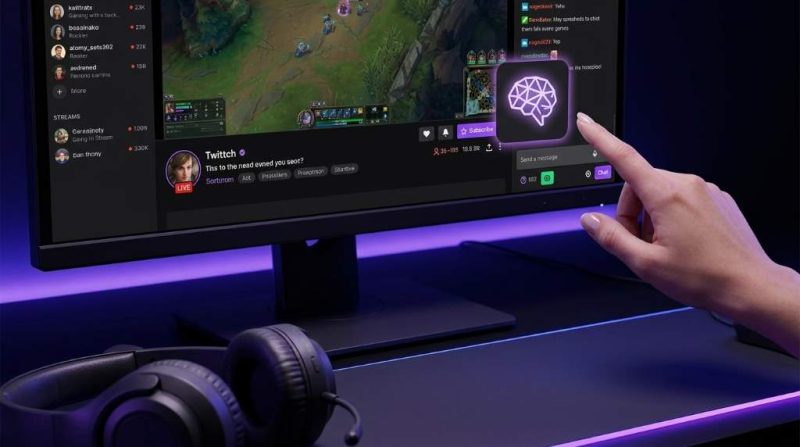
Many users in the USA want to know how to close Twitch Leo AI because they prefer browsing without AI assistance. Leo AI, integrated into the Brave browser, can appear while using platforms like Twitch and other websites. According to recent browser usage reports, AI powered browser features have become increasingly common, affecting millions of users worldwide. Additionally, privacy surveys indicate that over 60% of users prefer having full control over optional AI features. This guide explains exactly how to disable, hide, or completely remove Leo AI while using Twitch and other websites.
What Is Twitch Leo AI?
Twitch Leo AI usually refers to the Leo AI assistant available within the Brave browser while browsing Twitch. It is not an official Twitch feature but rather a browser integrated AI assistant. Understanding this distinction helps users disable the correct feature quickly.
Leo AI can summarize pages, answer questions, and provide AI generated assistance. However, many users prefer a distraction free browsing experience. Therefore, disabling Leo AI becomes an important customization option.
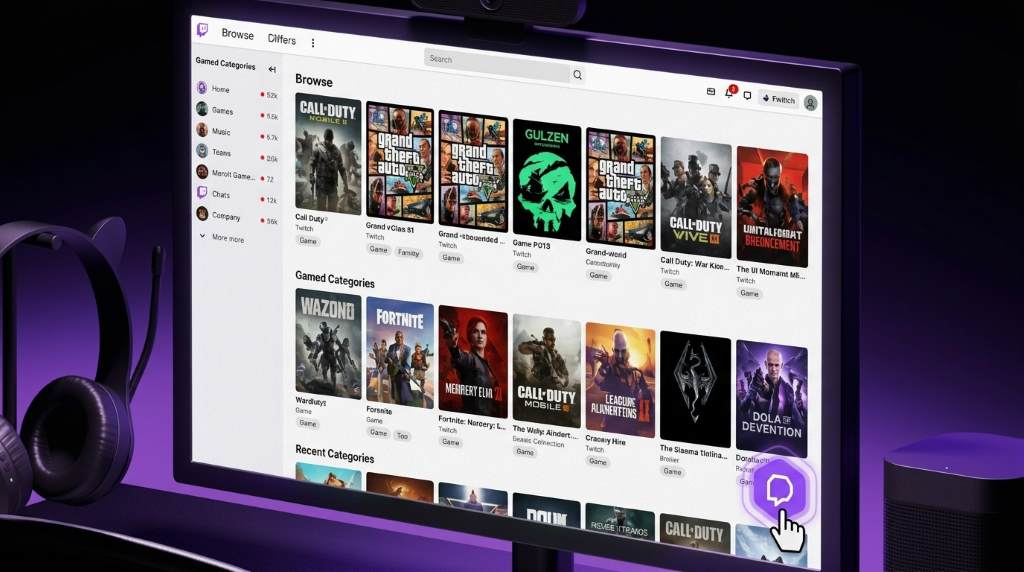
How To Close Twitch Leo AI From The Brave Browser
The easiest method involves disabling Leo directly from your Brave browser settings. Similar browser automation features, discussed in automate emails ai guides, often provide optional controls that users can manage manually.
Follow these simple steps:
- Open the Brave browser.
- Click the three line menu icon.
- Select Settings.
- Find the Leo section.
- Turn off all Leo related features.
- Restart your browser.
After completing these steps, Leo AI should no longer appear while using Twitch. Additionally, the browser experience becomes cleaner and more focused.
How To Remove The Leo AI Sidebar On Twitch
Some users only want to hide the sidebar instead of disabling the entire feature. Similar customization approaches appear in best ai transcription tools applications that allow interface adjustments.
To remove the sidebar, open the Brave sidebar settings first. Then locate the Leo icon and disable its visibility. Once completed, Twitch pages will display without the Leo panel.
Disable Sidebar Through Settings
Open Settings and navigate to Appearance options. Next, locate sidebar customization features. Finally, uncheck the Leo AI option.
Hide Leo Using The Sidebar Menu
Click the sidebar customization button. Afterward, deselect Leo AI from the available tools list. The icon will disappear immediately.
How To Completely Disable Leo AI Features
Users seeking complete removal can disable every Leo function available. Many AI productivity tools, including those discussed in ai financial advisors comparisons, offer similar opt out settings.
Complete disabling requires turning off all Leo permissions. This includes sidebar access, page analysis, AI suggestions, and chat history features. Consequently, Leo will no longer interact with Twitch or other websites.
Use these steps:
- Open Brave Settings.
- Select Leo from the navigation panel.
- Disable all available toggles.
- Turn off AI search assistance.
- Restart the browser.
This method provides the most effective solution for users who want zero AI interaction.
How To Disable AI Search Features Alongside Leo
Many users confuse Leo AI with Brave Search AI features. However, these systems operate independently. Therefore, disabling both provides a fully AI free browsing experience.
Visit Brave Search settings and locate the AI answer option. Afterward, disable the Answer with AI feature. This change prevents AI generated search summaries from appearing.
How To Close Leo AI On Mobile Devices
Mobile users often experience Leo AI differently than desktop users. Fortunately, disabling the feature remains straightforward. The process works similarly on Android and iPhone devices.
Open the Brave mobile application first. Then navigate to Settings and locate the Leo section. Finally, turn off all available Leo features.
Android Instructions
Tap the browser menu icon. Next, open Settings and disable Leo AI options. Restart the application afterward.
iPhone Instructions
Access browser settings through the menu button. Then locate Leo AI settings and disable all active options. Relaunch the browser for changes to apply.
Why Users Want To Close Twitch Leo AI
Several reasons explain why users prefer disabling AI features. Privacy concerns remain one of the most significant factors. Additionally, many users prefer traditional browsing experiences.
Some Twitch viewers report that AI panels create visual distractions. Others prefer reducing browser resource consumption. Therefore, disabling optional AI features often improves usability.
Common reasons include:
- Better privacy control
- Fewer interface distractions
- Improved browser performance
- Reduced memory usage
- More traditional browsing experience
Troubleshooting If Leo AI Still Appears
Sometimes Leo continues appearing after disabling settings. Fortunately, several troubleshooting methods exist. These solutions resolve most cases quickly.
First, restart the browser completely. Next, update Brave to the latest version. Finally, verify that all Leo related settings remain disabled.
Clear Browser Cache
Cached settings occasionally prevent changes from applying correctly. Therefore, clearing browser data can resolve persistent issues.
Update Brave Browser
Older browser versions may contain bugs affecting Leo settings. Installing updates often fixes these problems immediately.
Reset Browser Preferences
If problems continue, resetting browser preferences may help. However, save important settings before proceeding.
Should You Disable Leo AI?
The answer depends entirely on personal preference. Leo AI offers useful productivity features for many users. Nevertheless, others prioritize privacy and simplicity.
If you rarely use AI assistance while browsing Twitch, disabling Leo makes sense. Conversely, users who benefit from AI summaries may prefer keeping selected features enabled.
Conclusion
Learning how to close Twitch Leo AI is relatively simple once you understand that Leo belongs to the Brave browser rather than Twitch itself. By disabling Leo settings, hiding the sidebar, and turning off AI search features, users in the USA can create a cleaner browsing experience. Follow the steps outlined above to customize your browser exactly how you prefer. If this guide helped you, consider bookmarking it for future reference and sharing it with others facing the same issue.
FAQs
Is Twitch Leo AI an official Twitch feature?
No, Leo AI belongs to the Brave browser and not to Twitch.
Can I disable Leo AI permanently?
Yes, you can permanently disable Leo AI through Brave settings.
Does disabling Leo AI improve browser performance?
Yes, some users notice improved performance after disabling optional AI features.
Can I hide Leo without uninstalling Brave?
Yes, you can hide the Leo sidebar while keeping Brave installed.
Will disabling Leo affect Twitch functionality?
No, Twitch will continue functioning normally after disabling Leo.

Leave a Reply