
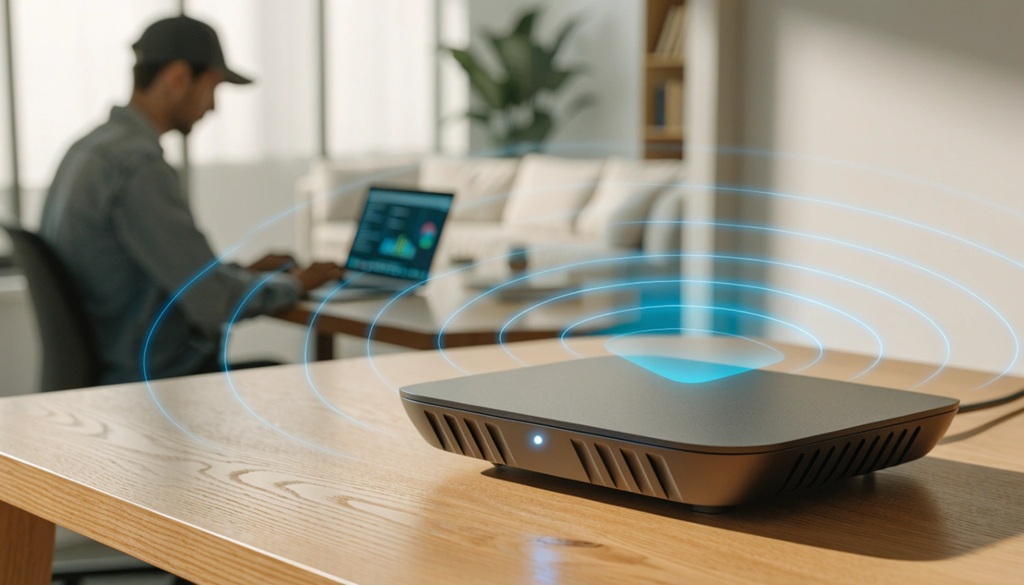
You can upgrade your home network for maximum speed by testing your current setup, replacing outdated hardware, and placing your equipment correctly. Most slow home networks aren’t caused by a bad internet plan. They’re caused by old routers, weak signals, and poor placement.
This guide walks you through every step. You’ll learn what to fix first, what to buy, and what to skip. No jargon. No guesswork.
Whether you’re working from home, gaming, or streaming in 4K, these fixes apply to you. Let’s get your network running the way it should.
Test Your Current Network Speed First
Before you upgrade anything, find out what’s actually wrong. A speed test tells you if the problem is your internet plan or your home equipment.
Run a test using a site like Speedtest.net or Fast.com. Do this test near your router, using a wired connection if possible. Then run the same test from the room where your Wi-Fi feels slow.
If both results are close to what you pay for, your internet plan is fine. The problem is likely your router or its placement. If both results are far below your paid speed, call your provider first.
Quick tip: Test your speed at different times of day. Evening slowdowns often point to network congestion, not a hardware problem.
Upgrade Your Router for Better Performance
Your router is the heart of your home network. An old or cheap router is the number one reason for slow Wi-Fi, even with a fast internet plan.
Choose Wi-Fi 6 or Wi-Fi 6E
Wi-Fi 6 routers handle more devices at once without slowing down. This matters more than ever, since the average home now runs dozens of connected devices, from phones to smart thermostats.
Wi-Fi 6E adds a new 6GHz band. This band is less crowded, so it offers faster speeds with less interference. If you own newer devices that support 6E, this upgrade makes a real difference.
You don’t need the most expensive router on the shelf. Look for one rated for your home’s square footage and your typical device count.
Position Your Router Correctly
Router placement affects speed more than most people expect. Signals weaken through walls, floors, and metal objects like appliances or mirrors.
Place your router in a central, open location. Keep it off the floor and away from thick walls. Avoid closets, cabinets, and corners.
Elevate the router on a shelf when possible. Height helps the signal spread more evenly through your home.
Accelerate Bandwidth with Dedicated Wired Connections
Wired connections deliver unmatched speed and rock-solid stability compared to Wi-Fi, completely eliminating interference, signal degradation, and bandwidth degradation over distance. Connecting high-demand hardware such as gaming consoles, desktop workstations, and 4K streaming platforms—directly to your router via Ethernet guarantees peak throughput while liberating precious wireless bandwidth for mobile devices. For homes where running long cables proves impractical, powerline network adapters serve as an effective alternative by routing high-speed signals directly through existing electrical wiring; while they cannot fully match a dedicated Ethernet drop, they vastly outperform weak Wi-Fi coverage. Naturally, expanding your wired and wireless footprint often involves bringing more connected equipment online and as your bandwidth expands, safeguarding those entry points becomes critical, so be sure to explore secure smart home devices from hackers to keep your newly upgraded infrastructure fully protected.
Add a Mesh Network System for Whole-Home Coverage
A single router often can’t cover a large home evenly. Mesh systems solve this by using multiple connected units to blanket your space with signal.
Traditional Wi-Fi extenders simply repeat a signal, which often cuts speed in half. Mesh systems work differently. Each unit communicates with the others, creating one seamless network instead of separate weaker zones.
This matters most in homes over 1,500 square feet, multi-story houses, or homes with thick walls. If you have dead zones in your bedroom, basement, or garage, a mesh system usually fixes the problem within a day of setup.
A tip most articles skip: Don’t just add mesh nodes randomly. Use your phone’s Wi-Fi signal indicator to walk through your home and place each node exactly where the previous one starts to weaken, not where it’s most convenient. This single step prevents most mesh network complaints.
Optimize Your Wi-Fi Channels and Bands
Even great hardware performs poorly on a crowded wireless channel. Neighboring networks can overlap with yours, especially in apartments and dense neighborhoods.
Most routers auto-select a channel, but this choice isn’t always the best one. Use a free app like Wi-Fi Analyzer to see which channels are congested near you. Then manually switch your router to a quieter channel through its settings page.
Also, use your 5GHz band for close-range, high-speed devices like laptops and gaming PCs. Save the 2.4GHz band for smart home devices and gadgets farther from the router, since this band travels further through walls.
Upgrade Your Internet Plan and Modem
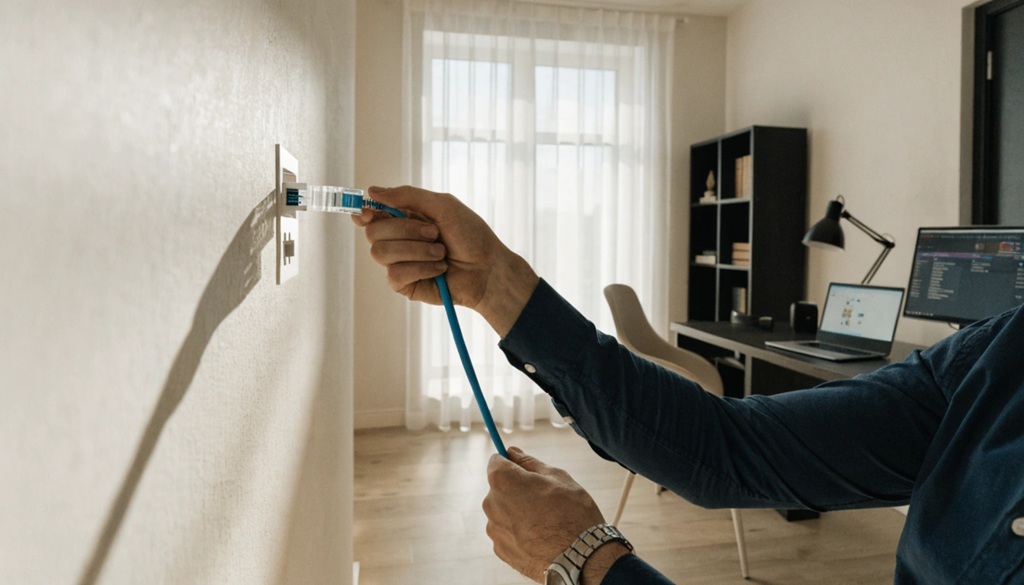
Sometimes the bottleneck isn’t your Wi-Fi at all. It’s the internet plan or modem feeding your entire network.
Check your modem’s age and specifications. An outdated modem can cap your speed well below what you’re paying for, even with a fast router attached. If your modem is more than five years old, replacing it is often the fastest and cheapest speed upgrade available.
Next, compare your current plan against your household’s actual needs. According to industry experts, a household with multiple 4K streams, video calls, and gaming needs significantly more bandwidth than a single-user setup. If you’ve added smart devices or remote workers since choosing your plan, it may be time to upgrade.
Secure Your Network to Prevent Speed Loss
An unsecured network doesn’t just risk your privacy. It can silently steal your bandwidth, too.
Set a strong, unique Wi-Fi password and change your router’s default admin login. Default logins are widely known and are a common target for unauthorized access.
Check your router’s connected devices list regularly. If you spot unfamiliar devices, someone may be using your network without permission. This extra traffic reduces the speed available to your own devices.
Finally, keep your router’s firmware updated. Manufacturers release updates that fix bugs, patch security holes, and sometimes improve performance directly.
Frequently Asked Questions
What is the fastest way to improve home Wi-Fi speed?
The fastest fix is usually router placement and a firmware update, since both are free and take minutes. If that doesn’t help, a router upgrade to Wi-Fi 6 typically delivers the biggest speed improvement for the cost.
Do mesh systems really work better than Wi-Fi extenders?
Yes, mesh systems generally outperform extenders because they create one unified network instead of a separate, weaker signal. Extenders often cut your speed significantly, while mesh nodes maintain more consistent performance throughout your home.
How often should I replace my router?
Most experts recommend replacing your router every three to five years. Wireless standards evolve quickly, and an older router may not support the speeds your internet plan actually offers.
Does the number of connected devices slow down my network?
Yes, more connected devices can slow down your network, especially on an older router. Newer routers with Wi-Fi 6 are built specifically to handle many devices at once without major slowdowns.
Is a wired connection really faster than Wi-Fi?
Yes, a wired Ethernet connection is almost always faster and more stable than Wi-Fi. Use wired connections for devices where speed matters most, like gaming consoles or work computers.
Conclusion
Upgrading your home network doesn’t require replacing everything at once. Start by testing your current speed, then fix router placement and outdated hardware first. From there, add wired connections, consider a mesh system, and secure your network against unwanted use.
Small changes often bring the biggest results. A better router position or an updated modem can solve problems that seemed to need a full equipment overhaul. Work through these steps in order, and you’ll build a home network that actually keeps up with how you use the internet today.

Leave a Reply