
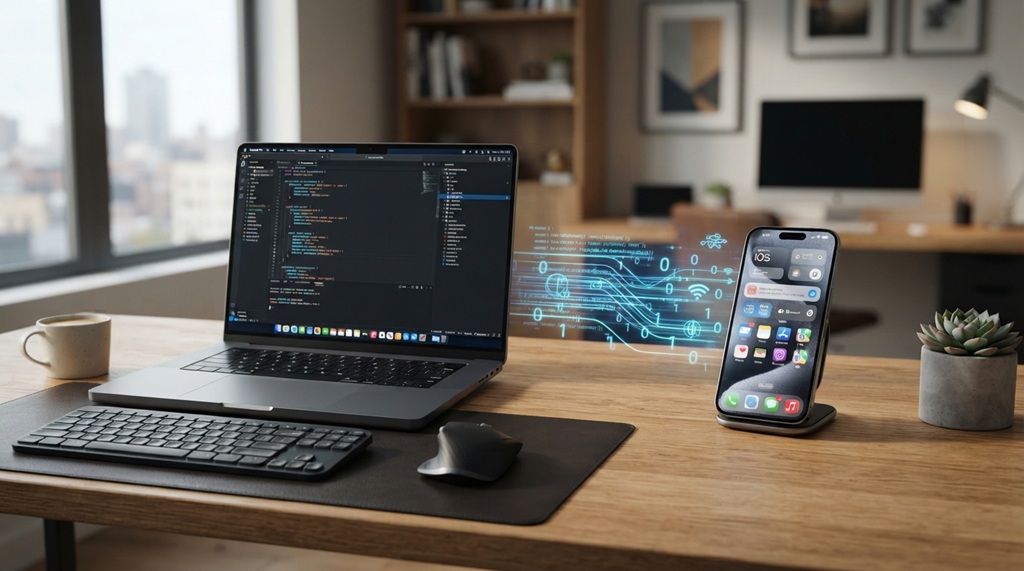
You can migrate data safely by backing up first, using official transfer tools, and verifying everything before you wipe the old device. This protects your photos, passwords, and files from loss or theft.
Skipping these steps causes real problems. People lose years of photos. They forget saved passwords. Some even leave personal data on old devices that get sold or recycled.
This guide walks you through the full process. You’ll learn what to back up, which tools to trust, and how to avoid common mistakes.
Why Data Migration Needs a Careful Plan

Data migration isn’t just copying files. It’s protecting everything you can’t easily replace.
Your phone or laptop holds more than apps. It holds photos, financial logins, health data, and personal messages. If something goes wrong mid-transfer, you could lose all of it at once.
There’s also a security risk. Old devices often get sold, donated, or recycled. If you don’t wipe them properly, your personal data can end up in someone else’s hands. A solid migration plan protects both your data and your privacy.
Back Up Everything Before You Start
Always create a full backup before touching your old device. This is your safety net if anything goes wrong.
Use Cloud Backup Services
Cloud backups are the easiest option for most people. Services like iCloud, Google Drive, and OneDrive sync your files automatically. They also let you restore data on a new device without cables.
Make sure your backup finishes completely before moving on. A partial backup can leave gaps in your photos or documents.
Use a Local Backup as a Second Layer
Cloud storage isn’t foolproof. Internet issues or account problems can interrupt an upload. That’s why many tech experts recommend a local backup too.
Copy your files to an external hard drive or USB device. This gives you a physical copy that doesn’t depend on your internet connection.
Organize Your Files Before Transferring
A messy file system makes migration harder and slower. Cleaning up first saves you time later.
Go through your documents, photos, and downloads folder. Delete duplicate files and anything you no longer need. This isn’t just about tidiness. Fewer files mean a faster, smoother transfer with less risk of errors.
If you use cloud storage, check that folders are properly synced before you begin. A folder that looks synced but isn’t can cause missing files after the move.
Secure Migration with Native Device Ecosystems
Official transfer tools engineered directly by device manufacturers offer unmatched encryption protocols and hardware-level stability, making them the safest method for moving sensitive personal data. Unverified third-party applications often bypass essential security checks and lack robust privacy protections, exposing your personal information to unnecessary vulnerabilities. Once your file migration seamlessly finishes, you can complete your mobile setup by learning how to test wireless earbuds for sound quality and fit to ensure an optimal audio experience across your newly paired devices.
For Smartphones
Apple offers Quick Start for iPhone-to-iPhone transfers. Android users can rely on Google’s own data transfer tools built into most devices. These tools move contacts, photos, apps, and settings with minimal manual work.
For Laptops and Computers
Windows includes tools like PCmigration assistance features, while Mac users can rely on Migration Assistant. Both move files, settings, and some applications directly between devices.
Avoid downloading random “data transfer” apps from unknown developers. According to industry experts, unofficial tools are a common source of malware and data leaks during device transfers.
Handle Passwords and Sensitive Data Separately
Passwords need extra care during migration. A cloud backup alone isn’t always enough to protect them properly.
Use a dedicated password manager instead of relying only on your browser’s saved logins. Password managers like Bitwarden or 1Password sync securely across devices and use encryption to protect your data. This keeps sensitive login information safer than a basic file transfer.
Also review any two-factor authentication (2FA) apps you use. Some 2FA apps need manual setup on a new device. If you skip this step, you could get locked out of important accounts.
Verify Everything Before Wiping Your Old Device
Never erase your old device until you confirm the new one works properly. This step is easy to skip, but it’s one of the most important.
Check that your photos opened correctly, and confirm your apps installed and log in as expected. Also check that your contacts and calendar synced fully.
Use your new device for a few days before wiping the old one. This gives you time to catch anything that didn’t transfer correctly.
Securely Erase Your Old Device

Once you’re confident everything transferred, it’s time to protect your privacy. Simply deleting files isn’t enough to keep your data safe.
Use your device’s built-in “factory reset” or “erase all content” feature. These tools are designed to wipe data securely, not just hide it from view.
If you’re selling or donating the device, consider this step non-negotiable. According to cybersecurity researchers, deleted files can sometimes be recovered with basic software if a proper wipe isn’t performed.
A Smart Tip Most Guides Skip: Create a “Migration Checklist” App List
Most articles tell you to back up files and use official tools. Few mention tracking your apps specifically.
Before switching devices, make a simple list of every app you use regularly. Include login-heavy apps like banking, work tools, and subscription services. Many of these apps don’t transfer automatically, even with official tools.
After migration, use this list to manually check each app. This small step prevents the common frustration of “losing” an app that technically never transferred, it just wasn’t reinstalled.
Frequently Asked Questions
How long does it take to migrate data to a new device?
Most phone-to-phone transfers take between 30 minutes and two hours, depending on file size. Laptop transfers can take longer, especially with large media libraries. Wi-Fi speed plays a major role in transfer time.
Can I migrate data without using the cloud?
Yes, many devices support direct cable or local network transfers. This works well for large files, since it doesn’t depend on internet speed. Just make sure both devices support the same transfer method.
Is it safe to use third-party data transfer apps?
Official tools are generally safer than third-party apps. Unofficial apps may request excessive permissions or lack proper encryption. Stick to tools made by Apple, Google, Microsoft, or your device manufacturer when possible.
What should I do if some files don’t transfer?
First, check your backup to see if the files exist there. If they do, you can manually copy them over using a cable or cloud storage. If they’re missing from the backup too, they may not have been backed up before the original transfer began.
Do I need to reset my old device if I’m keeping it as a backup?
If you’re keeping the old device for personal use only, a full reset isn’t required. However, you should still remove sensitive accounts and enable device lock features. This reduces risk if the device is lost or misplaced later.
Final Thoughts
Migrating data doesn’t have to be stressful. With a clear plan, backups, and official tools, you can protect your files and privacy during the switch. Take your time with each step, especially verification, before wiping your old device. A little patience now saves you from major headaches later.

Leave a Reply